A lookup formula finds a value in one column and returns a related value from the same row, for example a price for a product ID. The syntax below comes from Microsoft's and Google's own help pages, checked on October 29, 2026.
What you need to know in 10 seconds
- VLOOKUP searches the first column of a table and returns a value from a column to the right
- XLOOKUP searches one column or row and returns from any other column or row, including one on the left
- Default match: XLOOKUP is exact by default. VLOOKUP is approximate unless you add
FALSE - Availability: XLOOKUP works in Google Sheets and in Microsoft 365, Excel 2021 and Excel 2024. Microsoft says it is not available in Excel 2016 and Excel 2019
The Example Table
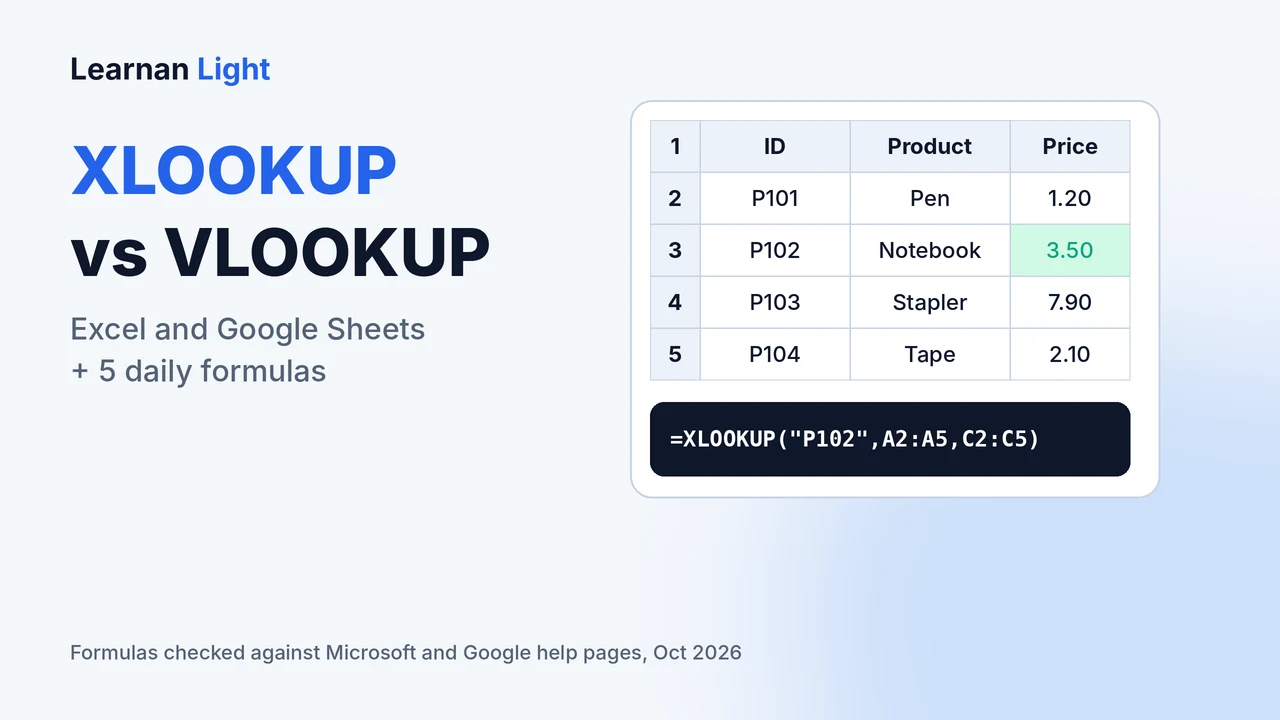
All examples use this small table in cells A1 to C5. The data is made up for practice.
- Row 1 (headings):
IDin A1,Productin B1,Pricein C1 - Row 2: P101, Pen, 1.20
- Row 3: P102, Notebook, 3.50
- Row 4: P103, Stapler, 7.90
- Row 5: P104, Tape, 2.10
Type an ID, for example P102, in cell E2. We want the price in F2.
VLOOKUP: The Classic Way
In Excel the syntax is VLOOKUP(lookup_value, table_array, col_index_num, [range_lookup]). Google Sheets uses the same idea with VLOOKUP(search_key, range, index, is_sorted).
Put this in F2:
=VLOOKUP(E2, A2:C5, 3, FALSE)
E2is the value to find (P102)A2:C5is the table. The ID must be in its first column3means "return the value from the third column of the table", which is PriceFALSEasks for an exact match
Do not forget FALSE
If you leave out the last argument, both Excel and Google Sheets use an approximate match by default. That can return a wrong value if your first column is not sorted. Add FALSE for an exact match.
Limits of VLOOKUP: the value you search for must be in the first column and the answer must be to its right. The column number is typed by hand, so inserting a column can break the result, and a value that is not found returns #N/A.
XLOOKUP: The Newer Way
In Excel the syntax is XLOOKUP(lookup_value, lookup_array, return_array, [if_not_found], [match_mode], [search_mode]). Google Sheets uses XLOOKUP(search_key, lookup_range, result_range, missing_value, match_mode, search_mode).
Put this in F2:
=XLOOKUP(E2, A2:A5, C2:C5, "Not found")
A2:A5is the column to searchC2:C5is the column to return, so you point at the answer directly and there is no column number"Not found"is shown if there is no match, instead of#N/A
XLOOKUP uses an exact match by default, so you do not need to add FALSE.
Looks in any direction
The answer column can be on the left or the right of the search column. VLOOKUP can only look left to right.
Safer defaults
Exact match is the default, and if_not_found lets you show your own message.
No column numbers
You select the return column, so adding or moving columns does not break the formula.
Can return more than one column
In Excel, selecting two or more return columns returns several values from one formula. Google Sheets also returns the whole matching row or column when the result range is larger.
Look-left example: if your table has Email in column B and Name in column A, =XLOOKUP(E2, B2:B20, A2:A20) finds a name from an email. VLOOKUP cannot do this directly.
VLOOKUP vs XLOOKUP: Which to Use?
- Use XLOOKUP if you work in Google Sheets or in a recent Excel and want simpler, safer formulas
- Use VLOOKUP if the file must open in Excel 2016 or 2019, or if you share it with people who have older versions
- Mixed team? Check the version first. If in doubt, VLOOKUP with
FALSEworks everywhere
5 Formulas People Use Every Day
These examples use a second made-up table: customer names in column A, order totals in column B and status ("Paid" or "Pending") in column C, rows 2 to 20.
1. IF: show a different result
=IF(B2>=100, "Big order", "Small order")
If the total in B2 is 100 or more, the cell shows "Big order". Otherwise it shows "Small order".
2. SUMIFS: add numbers that match conditions
=SUMIFS(B2:B20, A2:A20, "Anna", C2:C20, "Paid")
This adds all totals for the customer Anna whose status is Paid. The first range is what you add, then pairs of range and condition.
3. COUNTIF: count matching cells
=COUNTIF(C2:C20, "Paid")
This counts how many orders have the status Paid.
4. IFERROR: hide ugly errors
=IFERROR(B2/D2, 0)
If the division fails (for example D2 is zero), the cell shows 0 instead of an error. Google Sheets also has IFNA, which only catches #N/A errors, useful around VLOOKUP.
5. TRIM: clean extra spaces
=TRIM(A2)
TRIM removes extra spaces at the start and end of text. Hidden spaces are a common reason a lookup does not find a match.
Why Your Lookup Shows #N/A
- The value really is not in the table. Check the spelling and the ID
- Extra spaces. Clean the data with
TRIM, then try again - Numbers stored as text. A number typed as text will not match a real number, so make both the same type
- Approximate match. In VLOOKUP, add
FALSEas the last argument - Wrong range. In VLOOKUP, the search value must be in the first column of the table you selected
Copying formulas down
When you copy a formula down a column, lock the table range with dollar signs, for example $A$2:$C$5, so the range does not move.
Try It Yourself
- Type the example table into a new sheet
- Write the
VLOOKUPformula in F2 and test it with P101 and P104 - Write the
XLOOKUPformula in G2 and compare the result - Type a wrong ID and see what each formula returns
- Add a column on the left and see which formula keeps working
If your spreadsheet shows an error such as "Formula parse error", your region may use semicolons instead of commas between arguments. Try ; in place of ,.
Frequently Asked Questions
Is XLOOKUP better than VLOOKUP?
For most people, yes. It uses exact match by default, can look to the left, and does not need a column number. VLOOKUP is still useful when a file must open in older versions of Excel.
Does Google Sheets have XLOOKUP?
Yes. Google Sheets has an XLOOKUP function with similar arguments to Excel's version.
Which Excel versions have XLOOKUP?
Microsoft 365, Excel 2021 and Excel 2024 have it. Microsoft's help page says it is not available in Excel 2016 and Excel 2019.