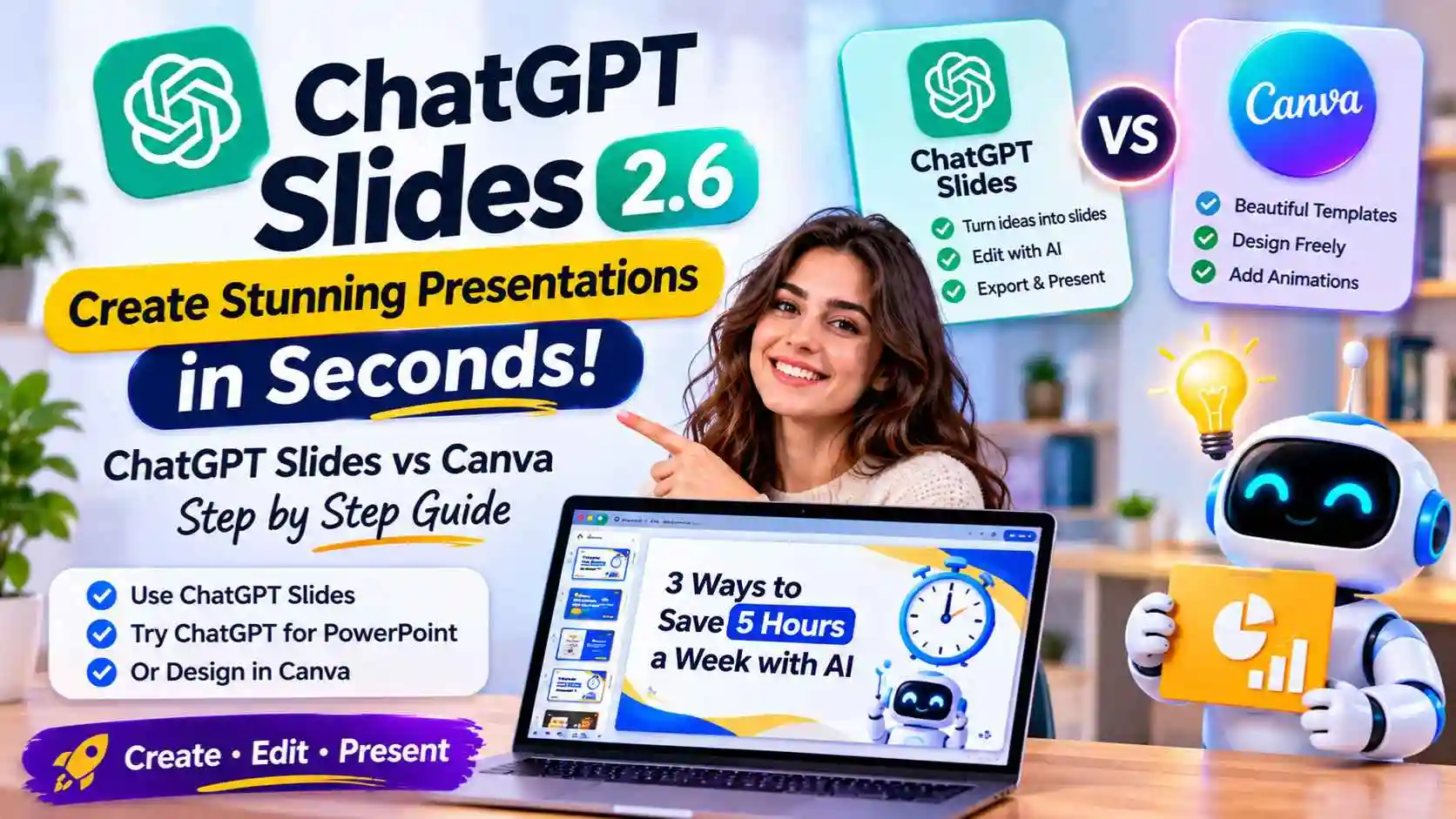
Yes, ChatGPT can make slides. On ChatGPT Pro, Business and Enterprise, ChatGPT Slides builds an editable deck you can present or export to PowerPoint, PDF or Google Slides. On the Free and Plus plans, use the free ChatGPT for PowerPoint add-in, or let ChatGPT write the slides and design them in Canva. Canva is still better when the deck must look polished, match a brand or use animation. Details below come from OpenAI's and Canva's help pages, checked on November 9, 2026.
The short answer
- ChatGPT Pro, Business or Enterprise: use ChatGPT Slides (in Work and Space)
- ChatGPT Free, Go or Plus: use the ChatGPT for PowerPoint add-in, or ChatGPT + Canva
- Need a fast first draft from your notes or files: ChatGPT is quicker
- Need beautiful design, templates, brand colors or animation: Canva is still better
- Best of both: write the deck in ChatGPT, design it in Canva
ChatGPT Slides vs Canva: Quick Comparison
| Feature | ChatGPT Slides | Canva Presentations |
|---|---|---|
| Plans | ChatGPT Pro, Business, Enterprise (with Space) | Free plan available. Pro is US$144/year |
| Best at | Turning notes, files or a chat into a deck | Design, templates and visual polish |
| Start from | A conversation, files, an outline or an example deck | A template, a blank deck or a prompt |
| Templates | Your own template or an example deck | 1.6M+ templates on Free, 3.6M+ on Pro |
| Edit by hand | Text, images, shapes and charts | Everything, with drag and drop |
| Edit by asking AI | Yes, ask ChatGPT to change a slide | Yes, with Canva AI |
| Team editing | Real time, with shared comments | Yes, invite others and design together |
| Present | Directly in ChatGPT, with speaker notes | Directly in Canva, several presenter modes |
| Export | PowerPoint, PDF, Google Slides (web) | PPTX, PDF, images, MP4 video and more |
Method 1: Make Slides With ChatGPT Slides (Pro, Business, Enterprise)
OpenAI launched ChatGPT Slides on October 16, 2026. It is available on ChatGPT Pro, Business and Enterprise plans with Space access, and OpenAI rolled it out gradually, so check that you see it in your account.
- Open Work in ChatGPT and ask it to "create ChatGPT slides". Or open Space and select Create, then Slide
- Say the topic, the audience and how many slides you want. Attach your notes or files, or point to an earlier conversation
- Open the deck in Space and edit text, images, shapes and charts yourself, or ask ChatGPT to change a slide
- Share the deck with teammates. People with edit access can work on it at the same time, and you can @mention ChatGPT in comments to request edits
- Present from ChatGPT, or on the web export to PowerPoint, PDF or Google Slides
Create ChatGPT slides: an 8-slide presentation for small business owners
about "3 ways to save 5 hours a week with AI".
Use the attached notes. One idea per slide, short bullet points,
a chart on slide 5, and a clear call to action on the last slide.
Good to know:
- On mobile, you can create slides by chatting and view decks. To edit slide elements, use the web or the desktop app
- On Windows, the desktop app may create a PowerPoint (.pptx) file instead of a collaborative deck if a required system component is missing (Windows 10 is not supported). OpenAI says to use cloud mode or ChatGPT on the web in that case
- Check the result before you share it. OpenAI recommends checking the facts, charts, layout and the exported file's formatting
Method 2: ChatGPT for PowerPoint (Free and Plus Too)
If you are on ChatGPT Free, Go or Plus, you do not get ChatGPT Slides. But the ChatGPT for PowerPoint add-in is available on all plans, including Free, subject to plan limits. It works in a sidebar inside Microsoft PowerPoint.
- In PowerPoint, install ChatGPT for PowerPoint from Microsoft Marketplace
- Sign in with your ChatGPT account
- Ask it to create new slides or a full deck, or to revise slides you already have
- Check every slide before you share it. OpenAI notes that advanced edits and template matching may still need review
You need Microsoft PowerPoint for this method. If you do not have it, use Method 3.
Method 3: Write With ChatGPT, Design in Canva (Any Plan)
This is the best free workflow for most people: ChatGPT does the thinking and writing, Canva does the design.
- In ChatGPT, ask for a slide-by-slide outline with the prompt below
- In Canva, choose a presentation template you like
- Paste the title and bullets of each slide into the template
- Add images, icons and your brand colors, then present from Canva or download as PPTX or PDF
Write a 10-slide presentation about [topic] for [audience].
For each slide give: a title of max 8 words, 3 short bullet points,
and one image idea. Slide 1 is the title slide,
the last slide is a takeaway with a call to action.
Tip: if ChatGPT gives you a PowerPoint file, you can import it into Canva. Canva supports .pptx files up to 300 MB and up to 300 slides, but it says charts, SmartArt, 3D objects and WordArt are not imported. Rebuild charts in Canva after you import.
When Canva Is Still Better
The design is the point
Pitch decks, client proposals and social media presentations need a polished look. Canva's templates and design tools are built for that.
You must match a brand
Canva Pro includes Brand Kits for your logo, colors and fonts, so every slide stays on brand.
You want motion or video
Canva supports animations and can export your deck as an MP4 video. Animations do not always survive a PowerPoint export.
You are on a free plan
Canva has a free plan with presentations and templates. ChatGPT Slides needs ChatGPT Pro (from $100 per month) or a business plan.
When ChatGPT Is Better
- You start from messy notes, a report or a spreadsheet and need a structured deck fast
- The content matters more than the design, for example an internal update or a class presentation
- You already work in ChatGPT and want your team to edit the same deck with AI help
- You need many versions of the same deck for different audiences
Common Mistakes to Avoid
- Too much text per slide. Ask ChatGPT for "max 3 bullets, max 8 words each"
- Not checking the facts. AI can get numbers wrong. Check every figure and chart before you present
- Expecting a perfect export. Open the exported PowerPoint or Google Slides file and fix fonts and layout before you share it
- Losing charts on import. Canva skips charts from PowerPoint files, so rebuild them in Canva
Keep Learning
Want better results from your prompts? Read 7 ChatGPT prompt mistakes and how to fix them. Moving designs between tools? See our PSD to Canva tutorial. Choosing an AI assistant? Compare Claude vs ChatGPT.
Frequently Asked Questions
Can ChatGPT make slides?
Yes. ChatGPT Slides creates editable presentations on ChatGPT Pro, Business and Enterprise plans with Space. On Free and Plus, you can use the ChatGPT for PowerPoint add-in or write the slides in ChatGPT and design them in Canva.
Is ChatGPT Slides free?
No. ChatGPT Slides is available on ChatGPT Pro, Business and Enterprise plans with Space access. The ChatGPT for PowerPoint add-in is available on all plans, including Free, subject to plan limits.
How do I make a presentation in ChatGPT?
On an eligible plan, open Work and ask ChatGPT to "create ChatGPT slides", or open Space and select Create, then Slide. Describe the topic, audience and number of slides, and attach your notes or files.