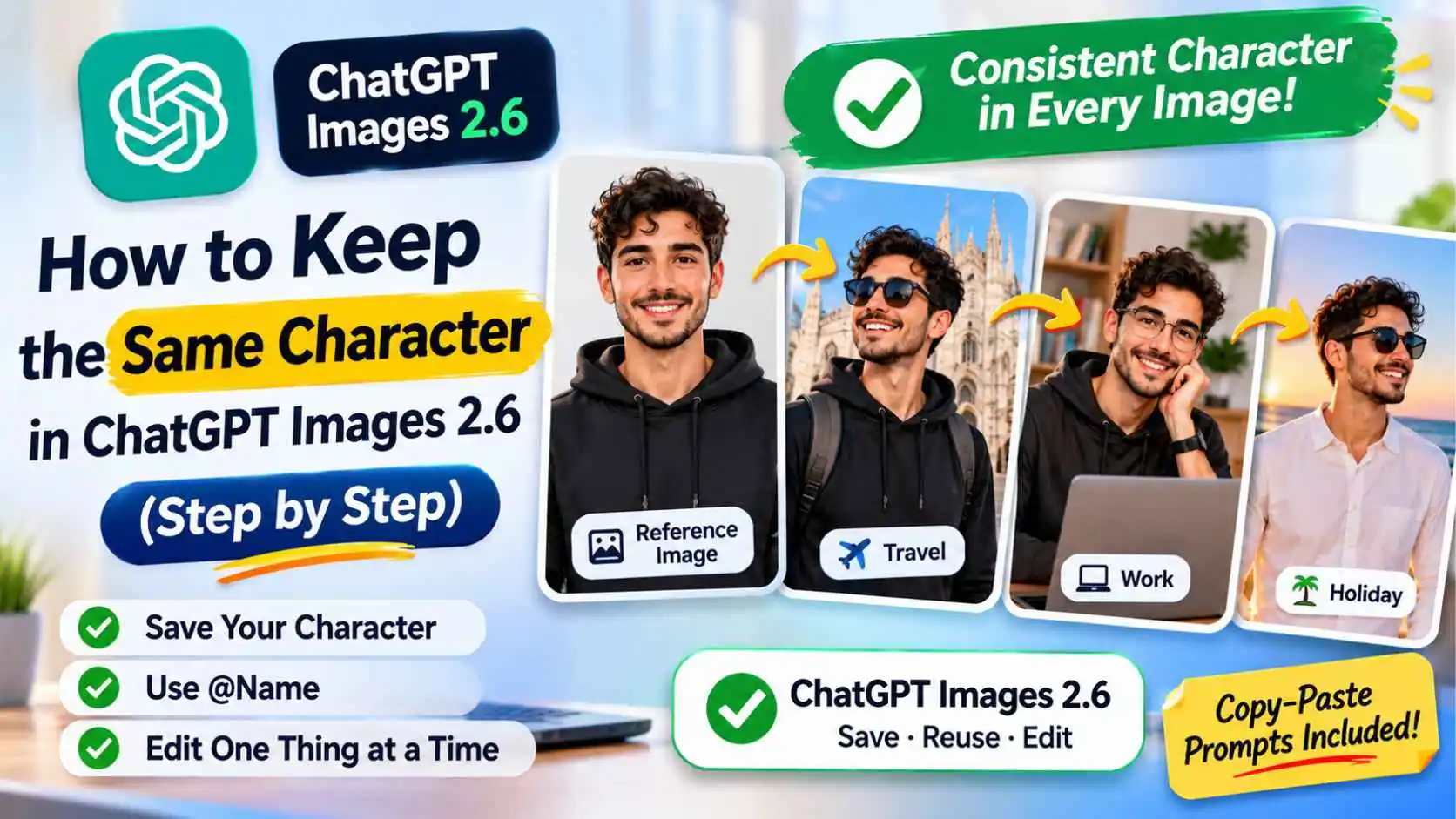
To keep the same character in ChatGPT, save one clear picture of your character as a reference image, give it a short name, and call it with @Name in every new prompt. Then change only one thing per edit. ChatGPT Images 2.6, released on November 4, 2026, made this much easier. This guide shows the exact steps, with copy-paste prompts. Details come from OpenAI's help center and release notes, checked on November 9, 2026.
The short answer
- Save your character once: upload the image and ask ChatGPT to save it as a reference, with a name such as Nova
- Reuse it anywhere: type @Nova in a new chat, no upload needed
- Lock the look: repeat the same short "character card" (hair, outfit, colors) in every prompt
- Edit one thing at a time: say what changes, and what stays the same
- Use the editor's Select tool when only one area should change
What Is New in ChatGPT Images 2.6?
OpenAI says Images 2.6 creates images faster and is better at keeping details consistent across edits, for example a character's outfit when you change the background. It also adds:
- Saved reference images: save a photo once and reuse it in later chats with @ and its name
- Animated GIFs: turn a prompt or an image into a short looping GIF (still rolling out)
OpenAI says Images 2.6 is available in ChatGPT on all plans, on web, desktop and mobile. Daily image limits still depend on your plan.
Step 1: Create a Clear Character Image
Consistency starts with a good first image. Make your character on a plain background, facing the camera, with the outfit fully visible. A busy first image gives the model too much to guess.
Create a full-body character on a plain light grey background.
Character: Nova, a young woman with short silver hair, round glasses,
a mustard-yellow raincoat, dark blue jeans and white sneakers.
Style: clean 3D cartoon, soft light. Facing the camera, neutral pose.
Tip: if you plan many scenes, ask for a character sheet too: the same character from the front, the side and the back, plus three expressions, in one image.
Step 2: Save It as a Reference Image
ChatGPT's help center explains the steps:
- Upload your character image (or use the one ChatGPT just made)
- Ask: "Save this as a reference called Nova"
- Choose the name when ChatGPT asks, then save it
- In any later chat, type @Nova in your prompt to use it
You no longer need to upload the same picture in every new chat.
Step 3: Write a Character Card and Reuse It
The reference shows the face and style. A short character card in words protects the details that drift most: hair, outfit and colors. Keep it the same, word for word, in every prompt.
@Nova — short silver hair, round glasses, mustard-yellow raincoat,
dark blue jeans, white sneakers. Same face, same proportions,
same 3D cartoon style.
Step 4: Put Your Character in a New Scene
Now add the scene after the card. Describe the place, the action and the light, and keep the card unchanged.
@Nova — short silver hair, round glasses, mustard-yellow raincoat,
dark blue jeans, white sneakers. Same face, same proportions,
same 3D cartoon style.
Scene: Nova is reading a map at a busy train station in the morning.
Wide shot, warm light, she is looking at the map and smiling.
Step 5: Edit One Thing at a Time
The fastest way to lose your character is to change many things in one request. Change one thing per edit, and say clearly what must stay the same:
Change only the background to a rainy city street at night.
Keep Nova exactly the same: face, glasses, raincoat, jeans, sneakers and pose.
Tip: short, positive instructions ("keep the raincoat mustard-yellow") usually work better than a long list of "do not change" rules.
Step 6: Use the Editor's Select Tool for Small Changes
To change only one part of the image, use the editor:
- Click the image in your chat (or in Images) to open the editor
- Choose Select and highlight the area you want to change, for example the coffee cup in her hand
- Describe the change, such as "make this a green tea cup"
- Use Undo or Redo if the selection is not right
OpenAI notes that selections are not always precise, and an edit can spread a little beyond the area you selected. If that happens, undo and select a slightly smaller area.
If Your Character Still Changes: Quick Fixes
| Problem | Fix |
|---|---|
| The face looks different | Use @Nova again and repeat the full character card |
| The outfit color changes | Name the color in the card and in the edit ("mustard-yellow raincoat") |
| The whole image changes after a small edit | Use Select on the area, or ask for one change only |
| It drifts after many edits | Start a new chat, use @Nova and your last good prompt |
| The style changes (3D to drawing) | Keep the style words in the card every time |
Bonus: Turn Your Character Into a GIF
Images 2.6 can also turn a prompt or an image into a looping GIF. OpenAI says this feature is still rolling out, so you may not see it yet. Keep the movement small, for example "Nova waves and blinks, the background stays still", for a smoother loop.
Use It Safely
- Use your own characters or photos. Do not create images of real people without their permission, or copy famous cartoon characters
- Check what you save. Saved reference images stay in your account, so only save pictures you are happy to store there
- Check the rules for commercial use before you sell images
Keep Creating
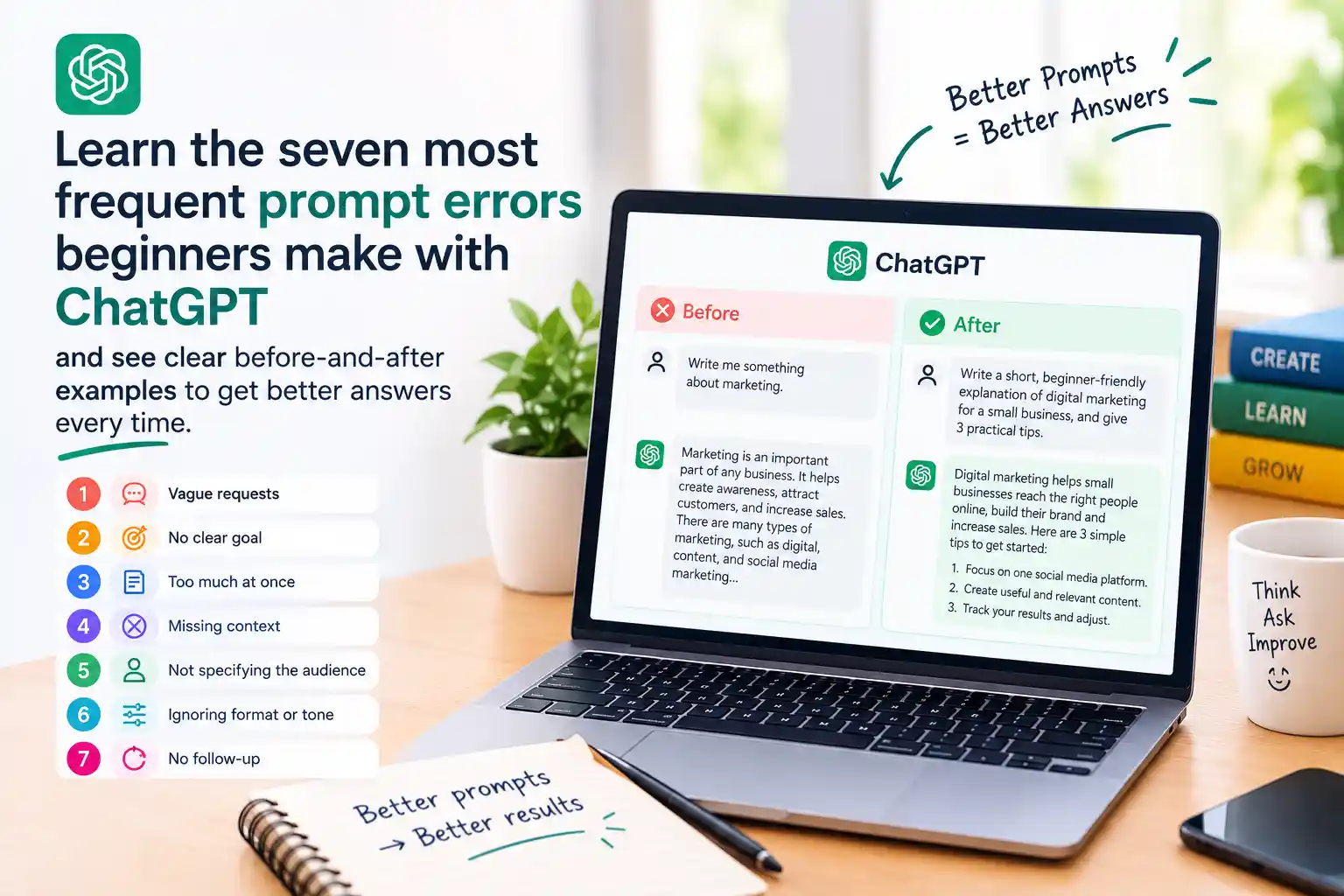
Want better prompts in general? Read our guide to 7 ChatGPT prompt mistakes and how to fix them. Comparing tools first? See Claude vs ChatGPT: which one to use.
Frequently Asked Questions
How do I keep the same character in ChatGPT images?
Save one clear image of the character as a reference with a short name, then type @ and that name in every new prompt. Repeat the same description of hair, outfit and colors, and change only one thing per edit.
What is new in ChatGPT Images 2.6?
Released on November 4, 2026, it creates images faster, keeps details more consistent across edits, lets you save reference images to reuse with @Name, and adds animated GIFs, which are still rolling out.
How do I save a reference image in ChatGPT?
Upload the image and ask ChatGPT to save it as a reference. Choose a name and save it. In a later chat, type @ followed by the name, for example "Make a watercolor portrait of @Pepper".
Is ChatGPT Images 2.6 free?
OpenAI says Images 2.6 is available on all ChatGPT plans on web, desktop and mobile. How many images you can create still depends on your plan.
Why does my character change when I edit the image?
Usually because the edit asks for several changes at once. Change one thing per edit, say what must stay the same, or use the Select tool to edit only one area. If it still drifts, start a new chat with @Name.
How do I edit only one part of a ChatGPT image?
Click the image to open the editor, choose Select, highlight the area and describe the change. OpenAI notes selections are not always precise, so edits can spread a little beyond the area.