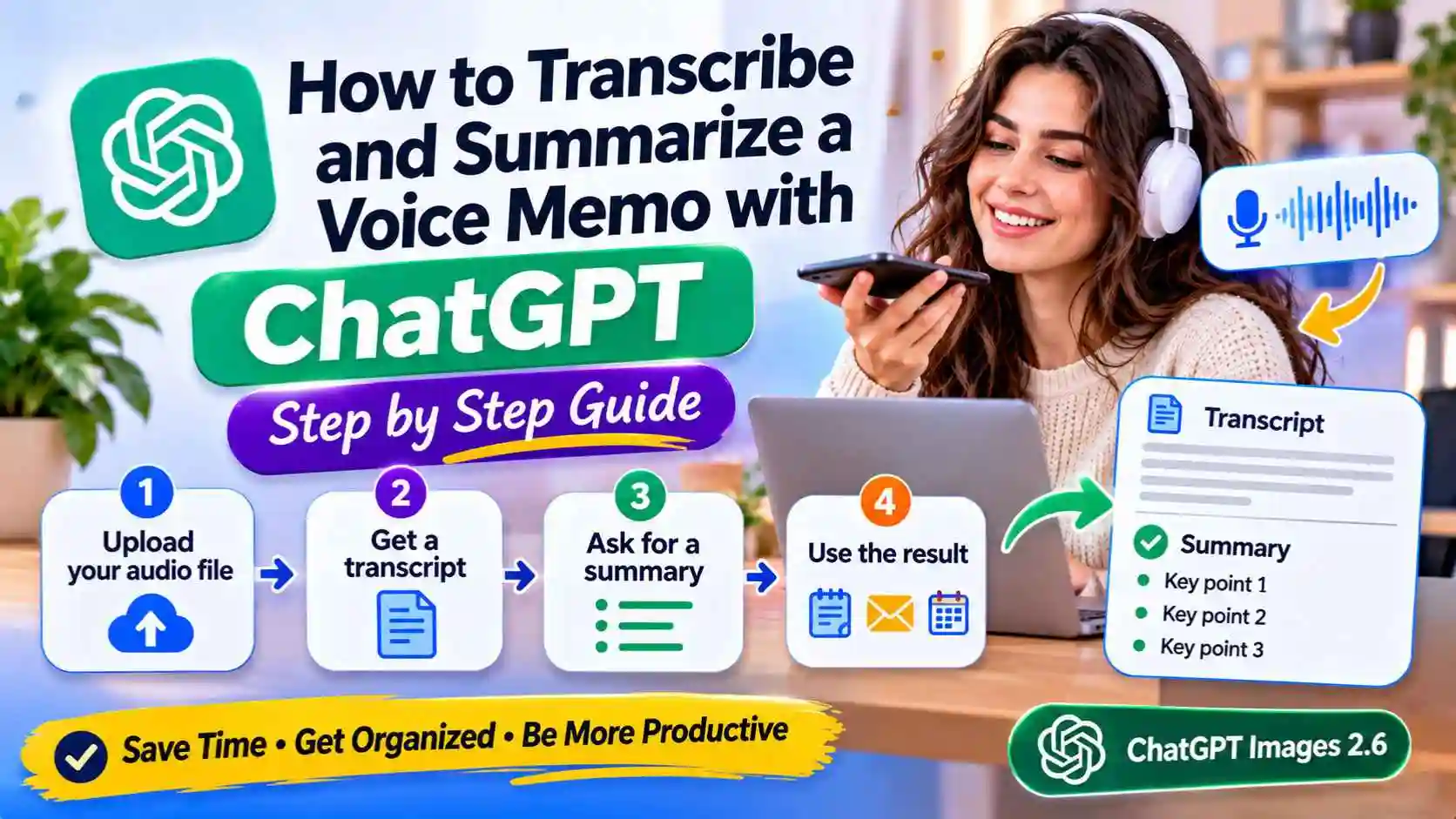
To transcribe and summarize a voice memo with ChatGPT, upload the audio file to a chat (for example the M4A file from your phone's voice recorder) and ask: "Transcribe this, then summarize it in 5 bullet points." Audio uploads have been available since October 6, 2026, on paid ChatGPT plans (not on Free). Files can be up to 512 MB. This guide shows the exact steps and ready-to-copy prompts for students and freelancers. Details come from OpenAI's help center, checked on November 10, 2026.
The short answer
- You need: a paid ChatGPT plan and an audio file (M4A, MP3, WAV and more)
- Upload: attach the file to a chat, or drag it into the chat window
- Ask: "Transcribe this" for the full text, then "Summarize it" for the key points
- Then reuse it: turn the recording into notes, an email, a to-do list or flashcards
- On the Free plan: get a transcript elsewhere first, then paste the text into ChatGPT
What You Need
| What | Details |
|---|---|
| Plan | Paid ChatGPT plans and workspaces. Not available on Free |
| Audio formats | M4A, MP3, WAV, AAC, FLAC, OGG, PCM, audio-only WebM and audio-only MP4 |
| Not supported | Video files (MP4 or WebM identified as video) |
| Maximum size | 512 MB per file |
| Long recordings | May be processed in sections. Very long files can time out |
OpenAI also says availability can depend on your region, app version and model, and that transcripts may contain errors, especially in some languages.
Step 1: Get the Audio File From Your Phone
- iPhone (Voice Memos): open the recording, tap the three dots, then Share and Save to Files. Voice Memos saves recordings as M4A, which ChatGPT supports
- Android: most recorder apps save M4A or MP3. Use the app's Share button, or find the file in your Files app
- Meeting recordings (Zoom, Google Meet, Teams): download the audio-only file if you can. If you only have a video, export the audio first
- WhatsApp voice notes: these are usually .opus files. If one does not upload, convert it to MP3 or WAV first
Step 2: Upload the Recording to ChatGPT
- Open ChatGPT on the web, the desktop app or the mobile app
- Start a new chat
- Click the + (attach) button and choose your audio file, or drag the file into the chat window on a computer
- Wait for the upload to finish, then type your request
Step 3: Get a Clean Transcript
Ask for the full text first. That way you can check it before you summarize.
Transcribe this recording word for word.
Keep the original language. Add paragraph breaks when the topic changes.
If there are several speakers, label them Speaker 1, Speaker 2.
Mark any part you cannot hear clearly as [unclear].
Tip: read the transcript once and fix names, brands or numbers ChatGPT may have misheard. Speaker labels are not always right, so check who said what. Then ask the next questions in the same chat.
Step 4: Summarize the Voice Memo
Summarize this recording in:
1. One sentence: what it is about
2. 5 key points
3. Decisions made
4. Action items with who does what and when (if mentioned)
Keep it short and use simple words.
Step 5: Turn It Into Something Useful
The real time-saver is what you do after the summary. You can ask questions about the recording, like "What did we decide about the price?" or "Find where we talked about the deadline."
Prompts for Students
Turn this lecture recording into study notes:
- the 5 main ideas, each in 2 sentences
- key terms with a simple definition
- 10 flashcards (question / answer)
- 5 quiz questions to test myself, with answers at the end
Explain the hardest part of this lecture as if I were 15,
with one everyday example.Prompts for Freelancers
This is a call with a client. Extract:
- what the client wants (requirements)
- budget, deadline and any limits mentioned
- open questions I still need to ask
Then write a short follow-up email confirming what we agreed.
Turn this voice memo of my ideas into a clear to-do list,
sorted by priority, with a time estimate for each task.Turn this voice note into a LinkedIn post of max 120 words,
in my own voice, with one clear takeaway.On the Free Plan? Do This Instead
Audio uploads are not available on ChatGPT Free. You can still get the summary for free:
- Get a text transcript from your phone or recorder app if it offers one, or from a free transcription tool
- Copy the text and paste it into ChatGPT
- Use the same summary and study prompts from this guide
Recording a meeting live instead? ChatGPT also has a separate Record mode in the ChatGPT desktop app for macOS, on Plus and higher plans, that records, transcribes and summarizes meetings of up to 4 hours.
Problems and Quick Fixes
| Problem | Fix |
|---|---|
| The upload button does not accept audio | Check that you are on a paid plan, and update the app |
| "File not supported" | Use M4A, MP3 or WAV. Video files are not accepted, so export the audio |
| It uploads but does not transcribe | OpenAI suggests converting the file to WAV and uploading it again |
| A long recording stops or times out | Split it into shorter parts (for example 20–30 minutes) and upload them one by one |
| Names or words are wrong | Tell ChatGPT the correct spelling: "The client's name is Yasmine Alaoui" |
| The summary misses details | Ask follow-up questions in the same chat, or ask for "more detail on point 3" |
Privacy and Accuracy: Read This First
- Ask before you record people. Tell others when a call is recorded, and follow your local rules
- Avoid uploading very sensitive recordings, such as passwords, health or banking details
- Check your data settings. In ChatGPT, open Settings, then Data controls, to choose whether your chats can be used to improve OpenAI's models
- Always check important facts. Transcripts can contain mistakes, so verify numbers, names and decisions before you send anything
Keep Learning
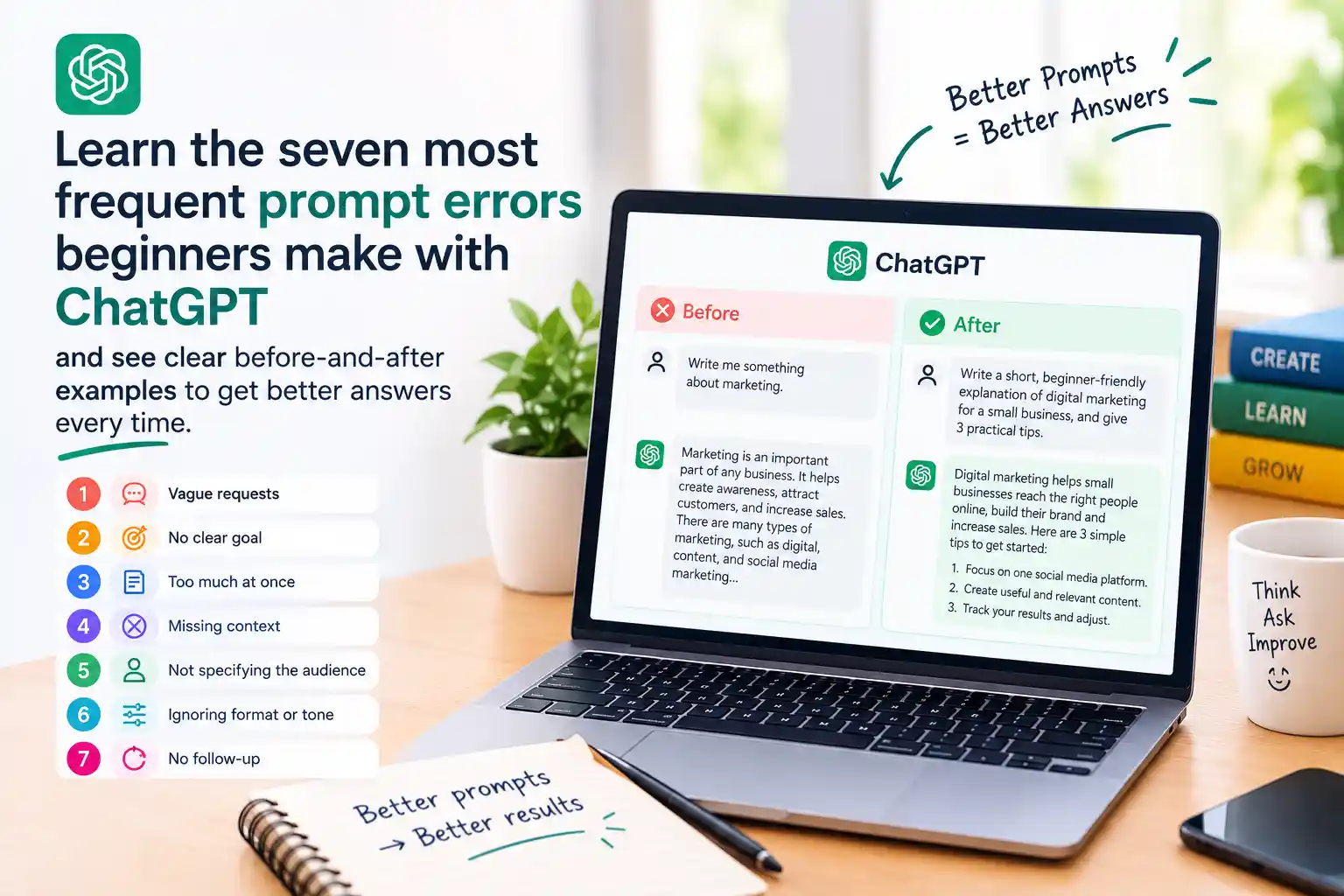
Organize your recordings and notes by topic with our guide on how to use Claude Projects step by step. Turn your to-do list into a plan with plan your week in 10 minutes with ChatGPT. Get better answers with 7 ChatGPT prompt mistakes and how to fix them.
Frequently Asked Questions
Can ChatGPT transcribe a voice memo?
Yes. Since October 6, 2026, paid ChatGPT plans can upload audio files and ask ChatGPT to transcribe them, summarize them or answer questions about them. Audio uploads are not available on the Free plan.
How do I upload audio to ChatGPT?
Start a chat, click the + (attach) button and choose your audio file, or drag the file into the chat window on a computer. Then ask ChatGPT to transcribe or summarize it.
What audio formats does ChatGPT support?
OpenAI lists WAV, MP3/MPEG, OGG/OGA, audio-only WebM, PCM, FLAC, AAC, M4A and audio-only MP4. Video files are not supported by audio uploads.
How long can the audio file be?
Audio files can be up to 512 MB. Longer recordings may be processed in sections, and very long recordings can time out, so split long files into shorter parts.
Can I transcribe audio on the free version of ChatGPT?
Not by uploading the file. On the Free plan, get a text transcript from your phone, recorder app or a free transcription tool, then paste the text into ChatGPT to summarize it.
Does iPhone Voice Memos work with ChatGPT?
Yes. Voice Memos saves recordings as M4A, which ChatGPT supports. Share the recording, save it to Files, then attach it in ChatGPT.
Is ChatGPT's transcription accurate?
It works best with clear recordings. OpenAI says transcripts may contain errors and quality can vary by language, so check names, numbers and decisions before you use them.